The hardest part of choosing a collaborative robot is not finding the specs—it is picturing what the arm actually looks like sitting on your floor.
Most major brands ship AR as a separate app download. Roooll opens from a product-page link in your mobile browser—no App Store step. Compare delivery models across the industry → Which cobot brands offer online AR?
Product photos, PDF datasheets, and trade-show walk-bys only tell you roughly what it looks like. What you really need to judge is different: how much floor it takes, whether it feels right from the operator position, whether it sits well next to existing equipment, and whether this corner gives enough room to move. Tables and static images rarely deliver all of that at once.
Roooll’s AR preview places the r-Series arm at true 1:1 scale in the space you are standing in now: walk around, crouch down, stand where you would operate—intuitive, nearly all-angle, with almost no blind spots. No CAD, no programming, no specialist engineer to build a scene. No sample robot, no demo booking. On phone or tablet, tap View in your space and in seconds you can tell whether this tier fits your station and matches your space and aesthetic expectations.
Integrators and end customers benefit the same way: send one link; your colleague or customer opens it on their floor and sees not a retouched supplier shot, but the machine in their workspace—closer to a real decision than an expo photo or a white-background catalog image.
No CAD, no sample robot, no demo booking—tap on phone or tablet to see the cobot at true scale in your workspace.
What AR saves you
Intuitive, nearly all-angle presence — Not just spinning a model on screen, but seeing envelope from the side and rear at your real operating position—like the sample is already on the floor, just not wired yet.
Zero specialist barrier — Open in the browser; no SolidWorks, no RobotStudio, no inverse kinematics. Procurement, process, leadership, and sales can align on “does it fit here, does it look right?” in the same view.
Seconds vs. weeks for a demo — Sample units need scheduling, logistics, and install time; demos need people and line windows. AR is a fast pre-filter before PO, travel, or customer meetings: obvious mismatch—skip the sample for now; worth a deeper look—book a demo with purpose.
Fixes “photo distortion” — Retouched renders, studio white backgrounds, and distant expo shots often mislead on size, footprint, and how the arm feels in context. AR puts the judgment on your floor, your light, next to your equipment—less “great in the brochure, surprising on site.”
Remote alignment — Integrators do not need hardware on every visit: one product-page link; the customer opens it in their shop and both stand at the real station—more decisive than three product photos for the next step (comparison, inquiry, demo).
Space and taste in one preview — Beyond “does it fit?” you see visual proportion, whether color and form suit the cell, and whether the arm feels crowded or out of place—hard to encode in a spec row, obvious in AR.
Models available for AR preview
r-Lite integrated — Compact base, 622 mm reach; line-side, lab, and front-of-house stations where you want a quick sense of footprint and operator view.
r-Ultra — Heavy-duty tier; preview large envelope and overall proportion at machine-tending or palletizing areas—whether the arm feels right in real space.
Dedicated AR models for r-Core, r-Max, and other tiers are in active development; until they ship, use Side-by-Side Comparison and the Reach guide, or send a layout via Contact us.
Where to open AR
Homepage — View in your space under the r-Lite or r-Ultra hero.
Desktop — The page prompts you to open on phone for a 1:1 fit check; send the same URL to your phone or tablet.
Selection journey — From the Product Advisor or Side-by-Side Comparison, open the matching product page, then AR.
Share with colleagues or customers — Forward the product-page link; they open it at their station on mobile.
How to use it (about 30 seconds)
Before you start
Use iPhone / iPad or Android phone / tablet in Safari or Chrome (avoid in-app browsers such as WeChat when possible). Stand at the real station; good light and a visible floor help plane detection.
Steps
Tap View in your space.
Allow camera access.
Move the device slowly so the system detects the floor plane.
Tap to place the model at true 1:1 scale on the ground.
Move and rotate the model per the system AR viewer; walk the operator path and check footprint, arm envelope, and clearance.
Exit AR and return to the browser to compare specs or inquire.
Android
Some devices open Google Scene Viewer (ARCore required). If nothing launches, update Google Play Services for AR and try again.
Preview runs on your device only; no station imagery is uploaded. The camera feed is used locally to place the AR model—it is not stored on Roooll servers, not used for training or marketing, and not shared with third parties without your consent.
When you close the page or exit AR, that session ends. We treat your floor and your privacy with absolute respect—your workspace stays yours.
Common issues
| Situation | What to try |
|---|---|
| No AR button | Switch to phone or tablet; desktop browsers cannot launch AR |
| WeChat / in-app browser blocks launch | Open in the system browser |
| Model will not place | Check camera permission; rescan on a floor with clearer texture |
| Scale feels wrong | Place on real floor, not a floating table; compare from your usual operating position |
| Need r-Core / r-Max in AR | AR models in active development—use comparison + layout inquiry |
How AR fits with comparison and the advisor
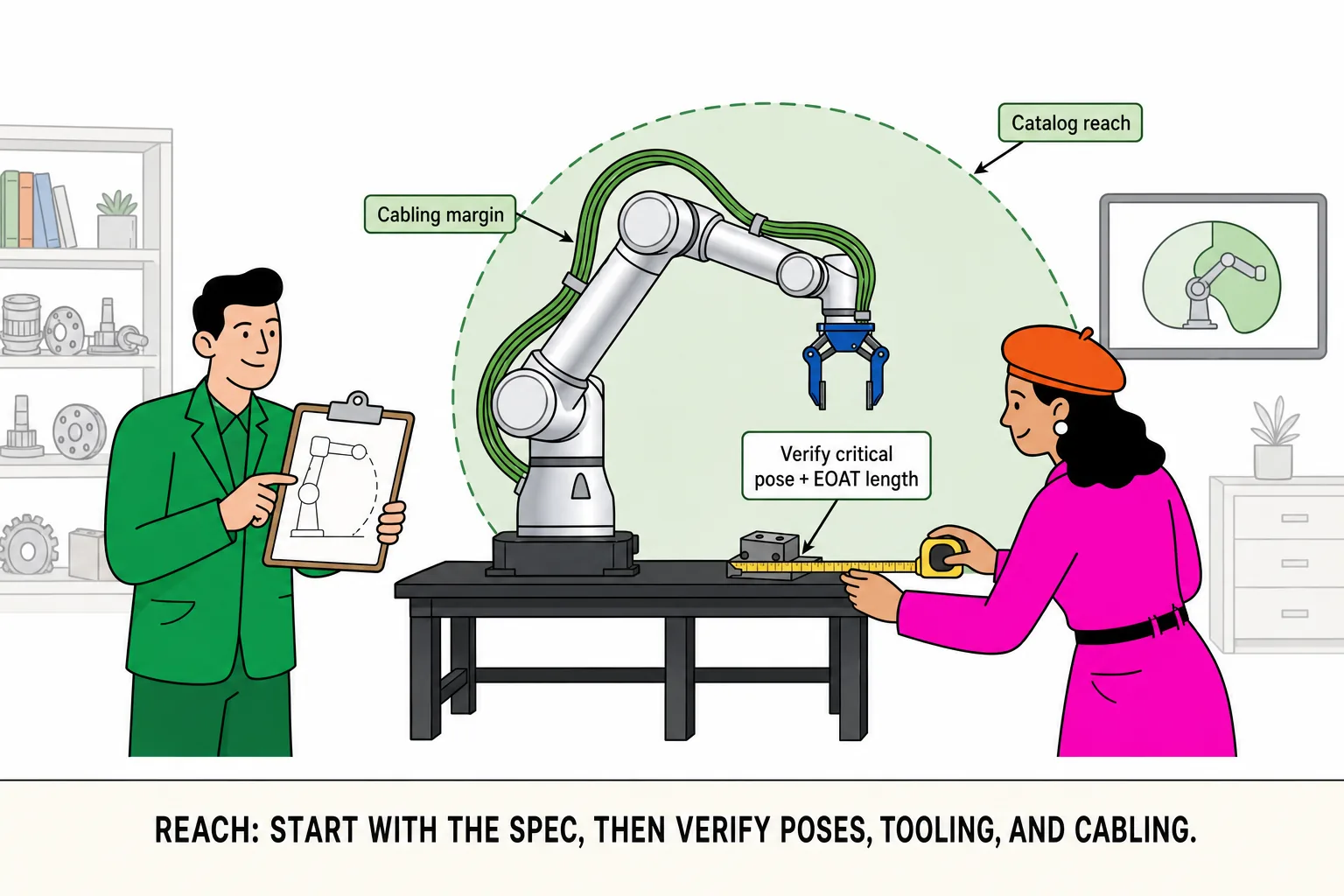
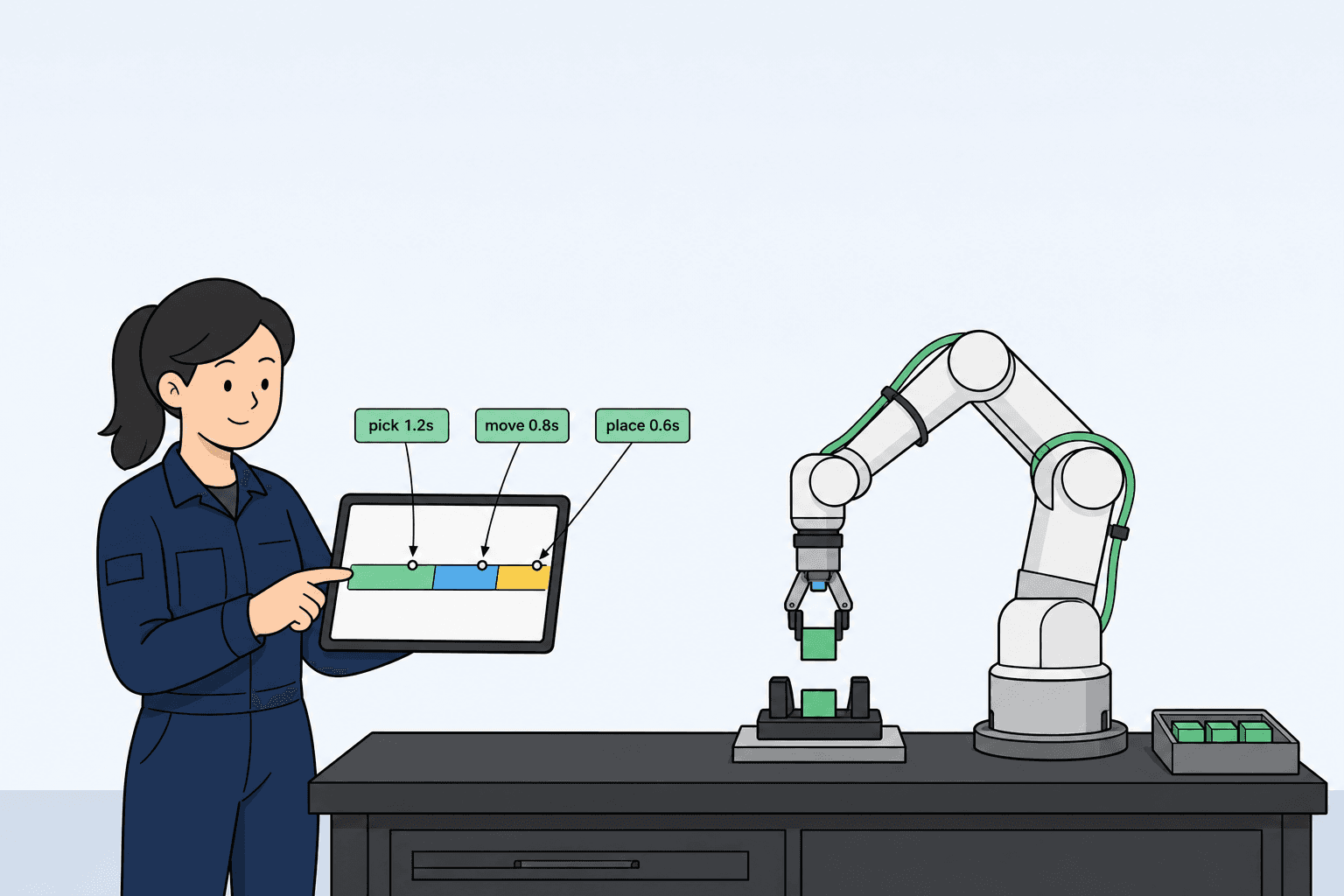
AR answers presence and space; rated payload, TCP pose, and cycle time still belong in the Payload guide, Reach guide, and Workcell layout guide.
| Tool | What it answers |
|---|---|
| AR preview | What it looks like on my floor, whether it feels right, whether it fits |
| Side-by-Side Comparison | Payload, reach, cabinet deltas across three models |
| Product Advisor | Primary recommendation and upgrade path; download a PDF summary from the result page |
Suggested flow: AR for first impression → comparison for specs → demo or inquiry when it is worth a deeper look.
See it in action
The video above walks through the flow—open AR, place on the floor, walk around. You can also open the live tool now and replay the same steps.